

Closed in Jira with no time logged: finding the reason
 Maria Reisinger·2026-11-17·5 min read
A joint article by DevSamurai and MetaFrazo
Why are Jira work items closed with no time logged, and how can a team find the reason? This article combines two views to answer that: the Jira Cloud event history, which shows how each work item was done, and the team’s resource plan, which shows whether the work was planned and what else filled the assignee’s schedule. MetaFrazo and DevSamurai wrote it together, using Audit Trail and Compliance Analytics for Jira and TimePlanner, DevSamurai’s app for resource planning and time tracking.
The problem: work closed without time logged
A work item is moved to done, but no time was ever logged against it. On the board, the work is finished. In the time records, it never happened.
This matters in three places. In planning, teams compare estimates with actual time to plan the next sprint or project. Work items with no time make work look faster than it was, so the next plan starts from incomplete numbers. In timesheets, the hours do not add up. A person’s timesheet shows less time than they worked, and for teams that bill clients, unrecorded time may never be billed. In capacity planning, missing time hides how much of a person’s week the work actually used, so they look less loaded than they were.
Counting these work items is a useful start, but a count does not explain them. Some needed no time at all. Others were done and never recorded. Telling the two apart is what this article is about.
How the work item reached done
A work item closed without a worklog tells you that no time was recorded. It does not tell you what happened before it was closed. Audit Trail and Compliance Analytics for Jira by MetaFrazo looks at that part, because it reads the event history of the Jira Cloud site.
Under Compliance > Control deviations, the chart Resolved-Without-Worklog by Project shows for each project how many work items were resolved with a worklog and how many without one.
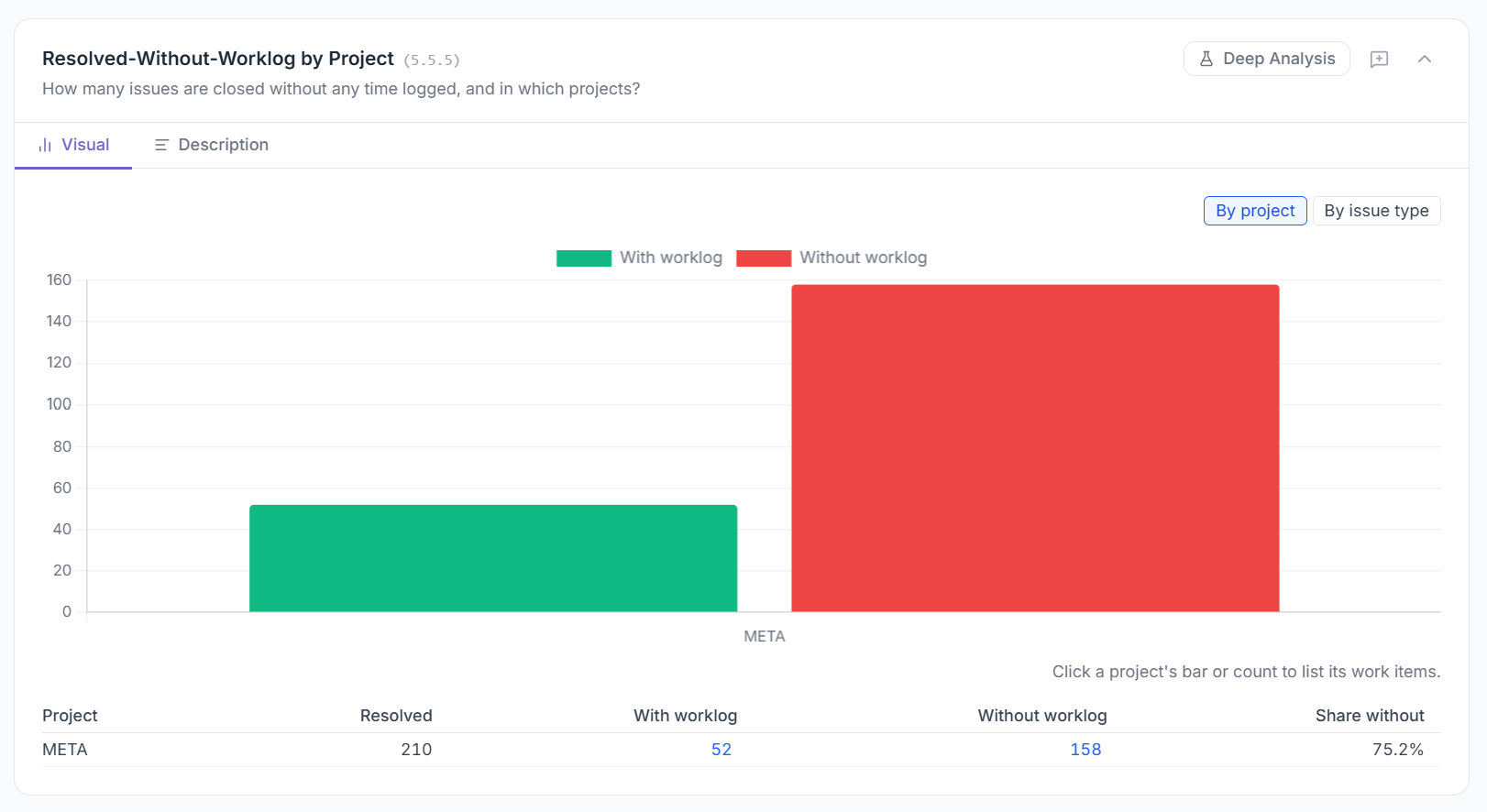
Work items resolved with and without a worklog in one project. Demo site with generated data.
Clicking a project's count opens the list behind it. For each work item, the list shows when it was resolved, which account resolved it, who was assigned at that moment and how long the item spent in statuses of Jira's In Progress category before it was closed. All of this is part of the Standard edition.
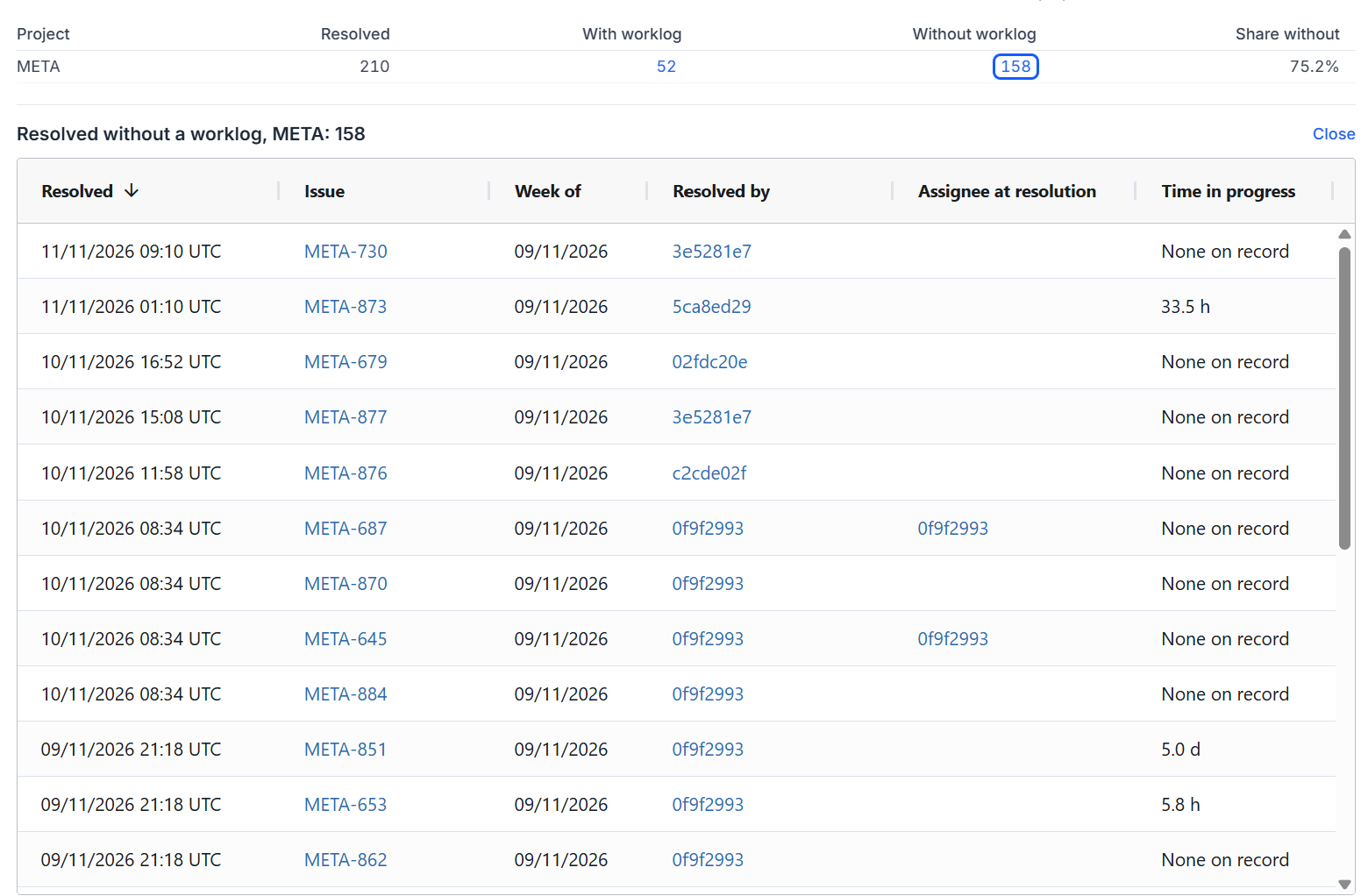
Work items resolved without a worklog, with their time in progress. Demo site with generated data.
The last column separates two situations that look the same in a simple count.
When it reads "None on record", the work item never entered an In Progress status and went from open straight to done. The team can check whether the work happened somewhere else, or whether the steps in the workflow still match how they actually work.
When it shows hours or days, the work item sat in progress for that long and still has no time logged against it. Here the question moves from how the item was closed to why the time is missing, and that is where TimePlanner comes in.
A few notes on reading the list. Time in progress is elapsed time in those statuses and says nothing about effort. MetaFrazo counts the worklogs on a work item as they stand today, so a deleted worklog does not count, and a work item closed into a status the organization treats as abandoned is left out. MetaFrazo records events from the day it is installed, so the history starts there. Whether the work behind a closed item was actually done is not something the data can show; that judgment stays with the team.
Why the time is missing
For a work item that sat in progress without any time logged, TimePlanner can show how the work was planned and what the assignee’s days looked like during that period.
Start with the Schedule Board, where work is planned against each member’s capacity. With workload turned on, each day is highlighted in a color that shows whether the planned hours are below, at or above that capacity. If the work item appears with planned hours, the work was expected. If those days were already over capacity with other work items, meetings or leave, that may explain why logging fell behind.
Next, compare planned and actual time. Members record actual time in the Timelog, and each entry is saved as a Jira worklog, so it also counts in MetaFrazo’s view. The difference between planned and logged hours shows where time went unrecorded and how each member’s capacity was used.
Timesheets give a weekly or monthly review of all logged time, which is a regular point to catch missing hours. They can also be exported to Excel for further calculations or to share with clients.
For client work, missing time also has a cost. When a work item is marked as billable, TimePlanner’s reports compare planned cost with actual cost, so unlogged time shows up as a gap between the two.
As with time in progress, the schedule shows the plan, not the effort. It is a starting point for the conversation with the team.
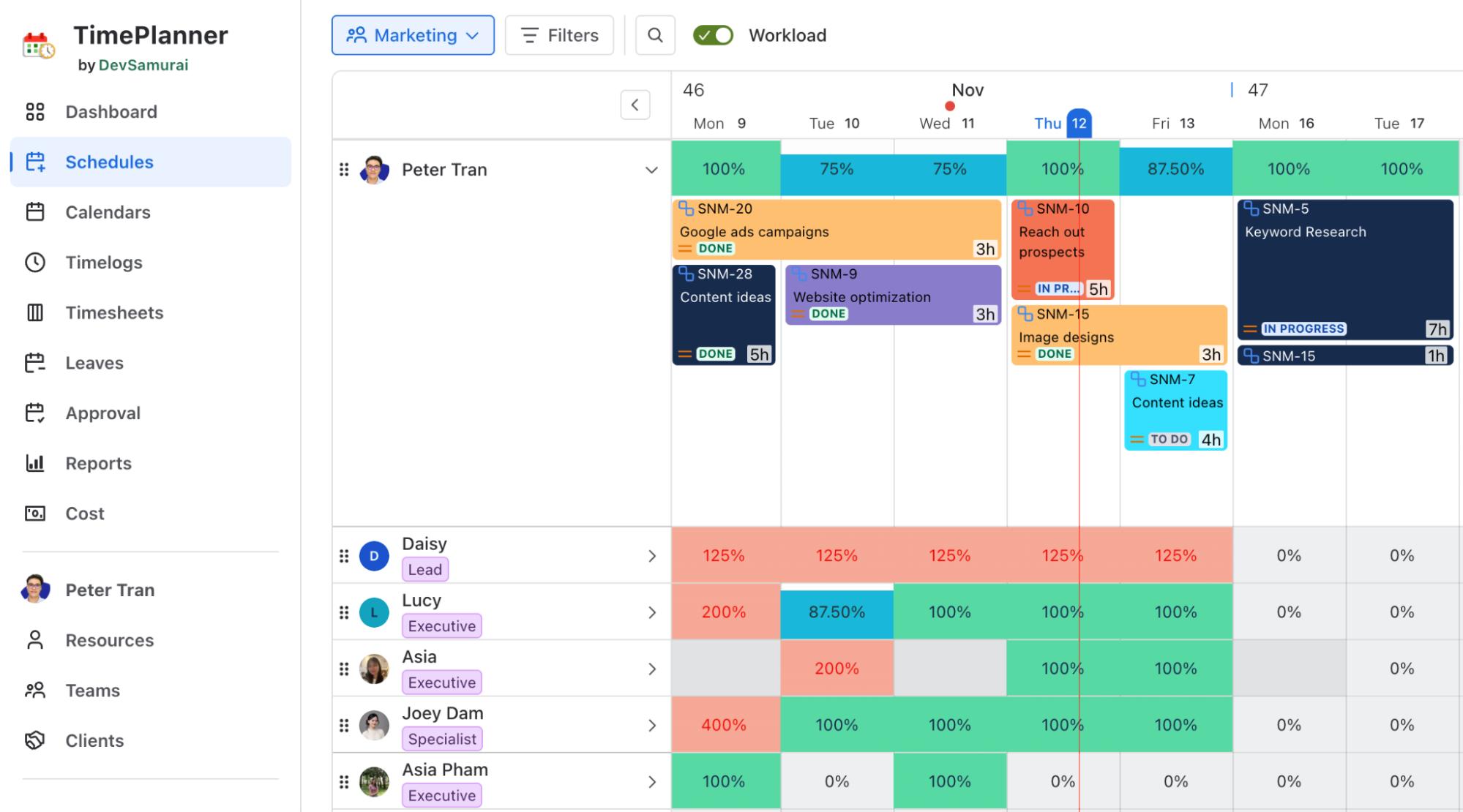
The assignee’s schedule in TimePlanner for the days the work item was in progress, showing planned work, leave and team meetings. Demo site with generated data.
What the team can do with it
Two questions make a good start for the next retrospective. For work items that went straight to done, where did the work happen, and does the workflow still fit the way the team works? For work items that sat in progress without any time logged, what got in the way of logging it?
To keep the gap small, TimePlanner’s Log all Scheduled option lets people turn their planned time into worklogs in one step, adjusting each entry before they confirm. Submitted timesheets then give managers one place to review missing hours.
Try it yourself
Audit Trail and Compliance Analytics for Jira
TimePlanner: Timesheets, Time Tracking & Capacity Resource Planning
Rate this post
Related articles
5 Questions with Robert Hean: Train for Day One
Robert Hean of Hean.Tech on training people the way he wished he had been trained, admin confessions and keeping the why next to every Jira change.
2026-11-19
5-questions-in-the-atlassian-universe-with-rishabh-jhawar
Rishabh Jhawar of Beyond Key on asking why before you build, moving procurement out of Excel and what an audit trail needs to explain later.
2026-11-12
5 Questions with Jacek Wizmur-Szymczak: Jira Integrations
Jacek Wizmur-Szymczak of Getint on connecting Jira with ServiceNow and other tools, why synced data loses its meaning and how to plan traceability.
2026-11-05